
Getting Started
Getting Started with FRC 2702 Scouting
Section titled “Getting Started with FRC 2702 Scouting”Welcome to the official user guide for the 2026 Season Scouting App. This guide will help you set up your device, find your assigned matches, and master the scouting interface.
1. Initial Setup
Section titled “1. Initial Setup”Before the first match, ensure your device is configured for the correct competition.
- Sign In: Open the app at
localhost:12702(or the team’s deployment URL). - Select Team: Choose Rebels Seed Team (or your assigned team tenant).
- Configure Season & Event:
- Season: Select
2026 - Rebuilt. - Event: Select your current event (e.g.,
Canadian Pacific Regional).
- Season: Select
- Continue: Tap the Continue button to enter the main dashboard.
2. Match Selection Flow
Section titled “2. Match Selection Flow”Finding your match correctly is critical to ensuring data integrity.
Finding the Match List
Section titled “Finding the Match List”- Navigate to the Scouting tab at the bottom of the screen.
- Tap the Match Selector (the top bar showing the current match number).
- Scroll through the list to find your assigned match.
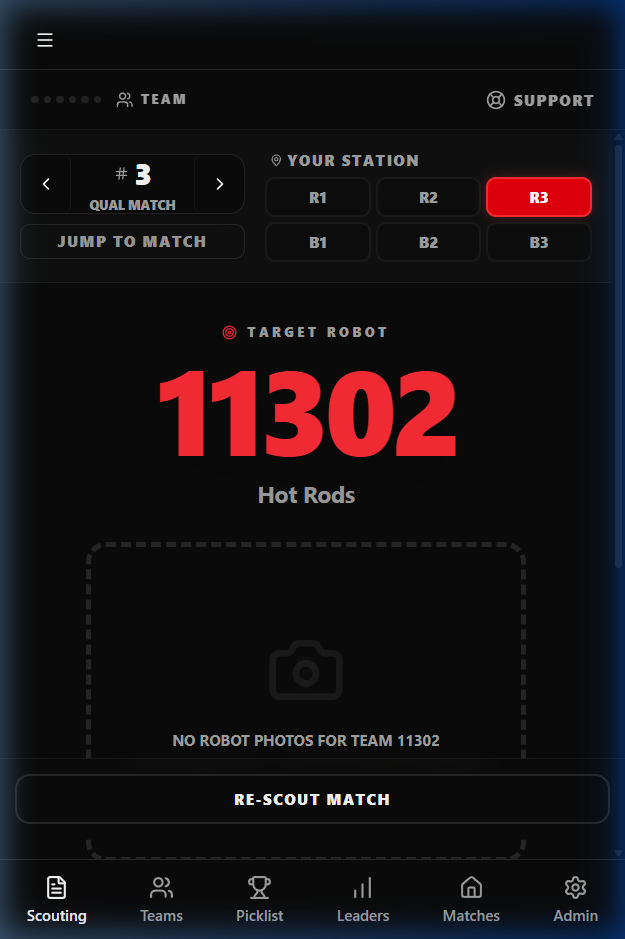 Use the match list
to jump to your assigned Qualification or Playoff match.
Use the match list
to jump to your assigned Qualification or Playoff match.
:::tip Always look for a “fresh” match. If a match has already been scouted by you, it will show as “RE-SCOUT MATCH”. For a new match, it will simply show the team information and wait for you to select a station. :::
Selecting Your Station
Section titled “Selecting Your Station”Once a match is selected, you must pick the robot station you are observing (e.g., Red 1, Blue 2).
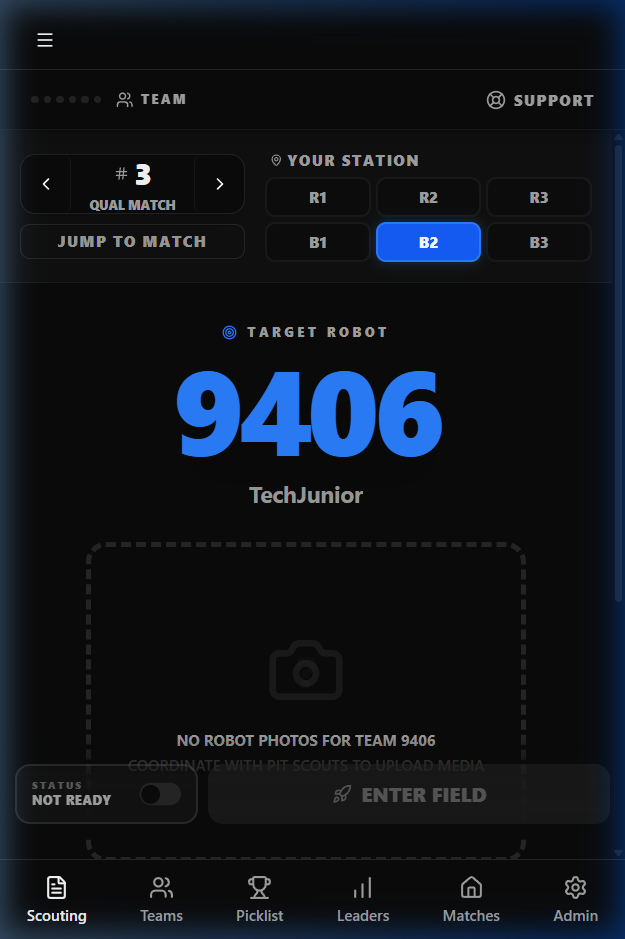 Pick your
assigned station. The app will automatically pull up the correct team and robot
details.
Pick your
assigned station. The app will automatically pull up the correct team and robot
details.
3. Pre-Match Briefing
Section titled “3. Pre-Match Briefing”Before the match starts, you’ll be presented with the Pre-Match screen.
- Robot Intel: Review historical data for the team you are scouting.
- Ready Toggle: When you are ready and the robot is on the field, flip the Ready switch.
- Enter Field: Tap ENTER FIELD to move to the live scouting interface.
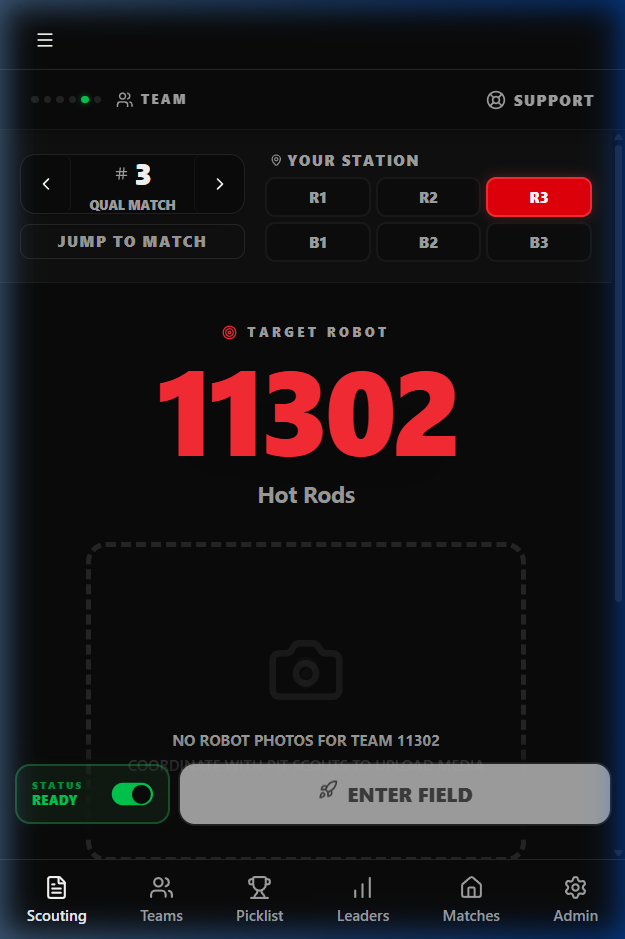 The Pre-Match
screen gives you a final briefing on the team before the action starts.
The Pre-Match
screen gives you a final briefing on the team before the action starts.